

How To Allow Port Forwarding To Function Through Windows Defender Firewall with VPN Adapters


When using Windscribe with port forwarding, at times you may find that the forwarded port is unreachable. This happens because Windows sets VPN adapters to "Public" networks by default, which blocks inbound access in Windows Defender Firewall. For port forwarding to work, you need to explicitly allow your listening app to accept connections on public networks.
Steps to Allow Port Forwarding Through The Firewall
1. Open Windows Security
- Press Start, type Firewall & Network protection and press Enter.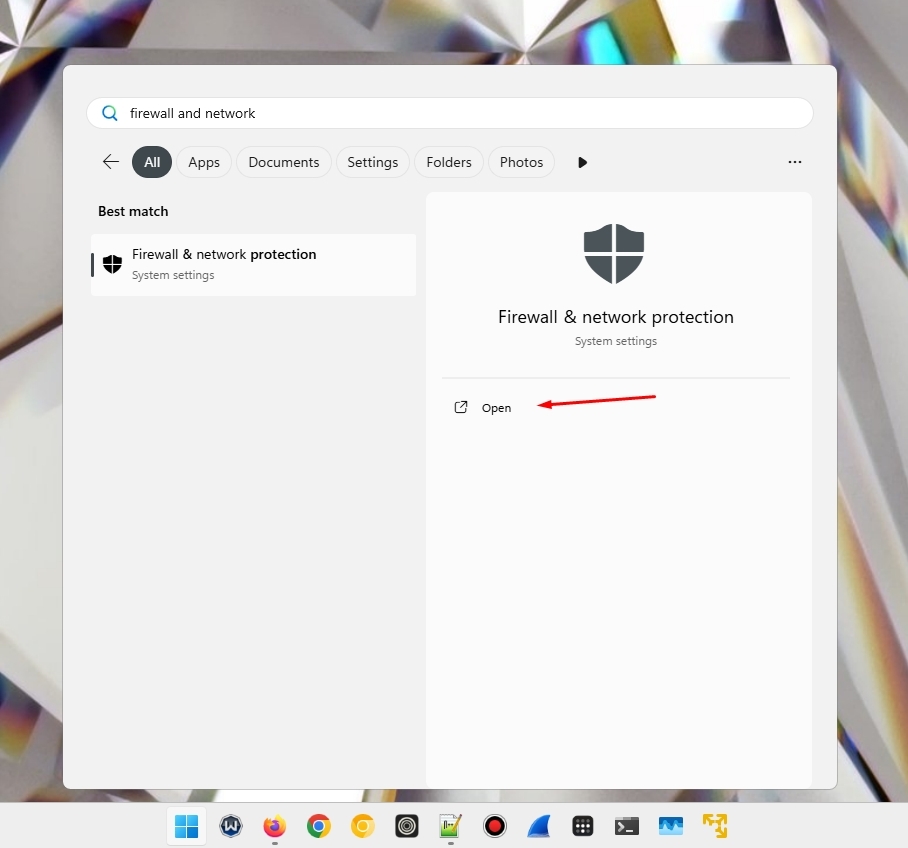
2. Open Allowed Apps.
- Click Allow an app through firewall.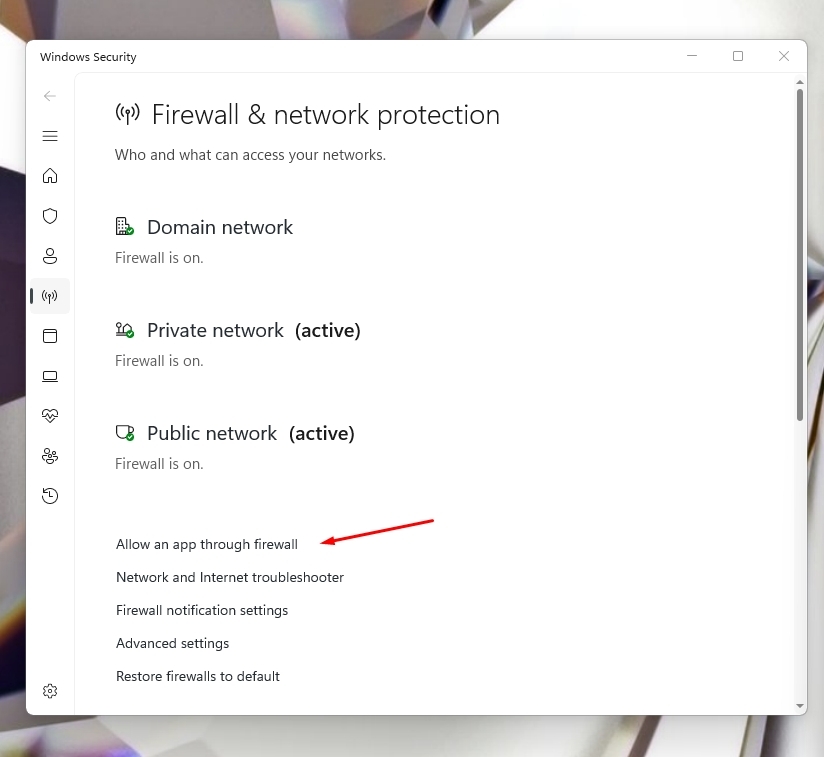
- Click Change settings.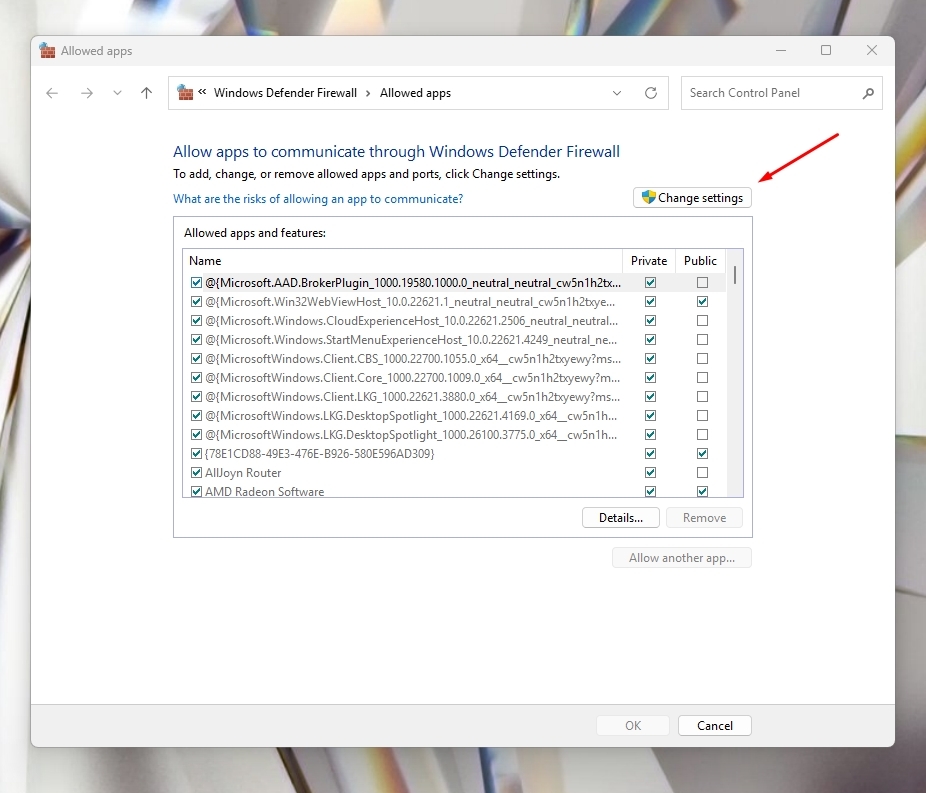
3. Locate Your Application
- Find your torrent client/game server/other app in the list.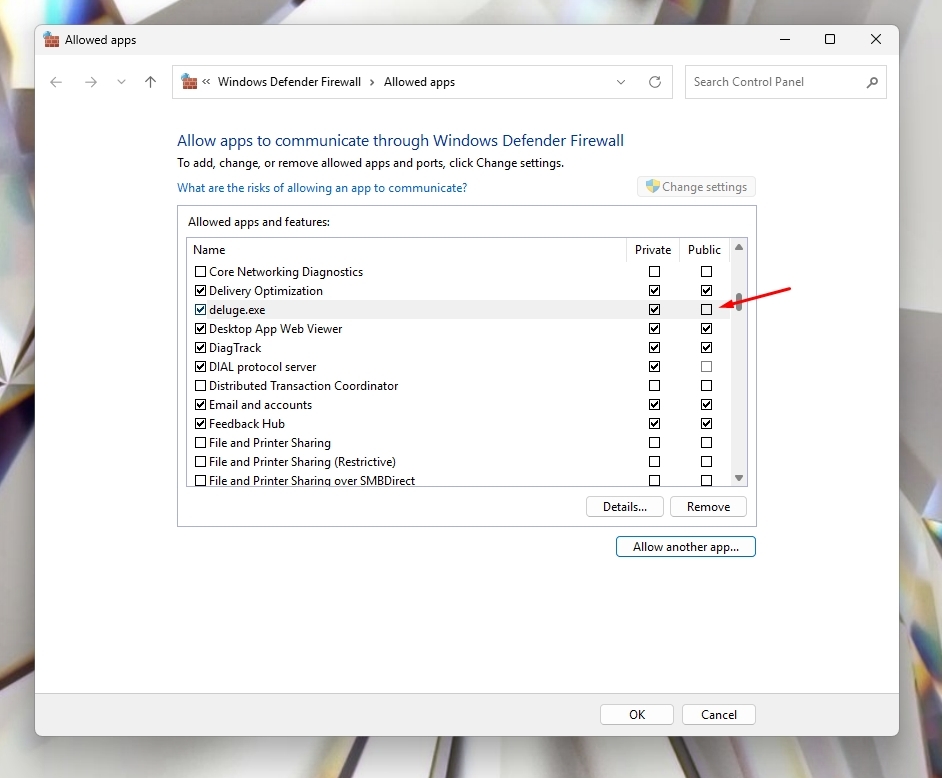
- If not listed, click the Allow another app… button and browse to the executable.
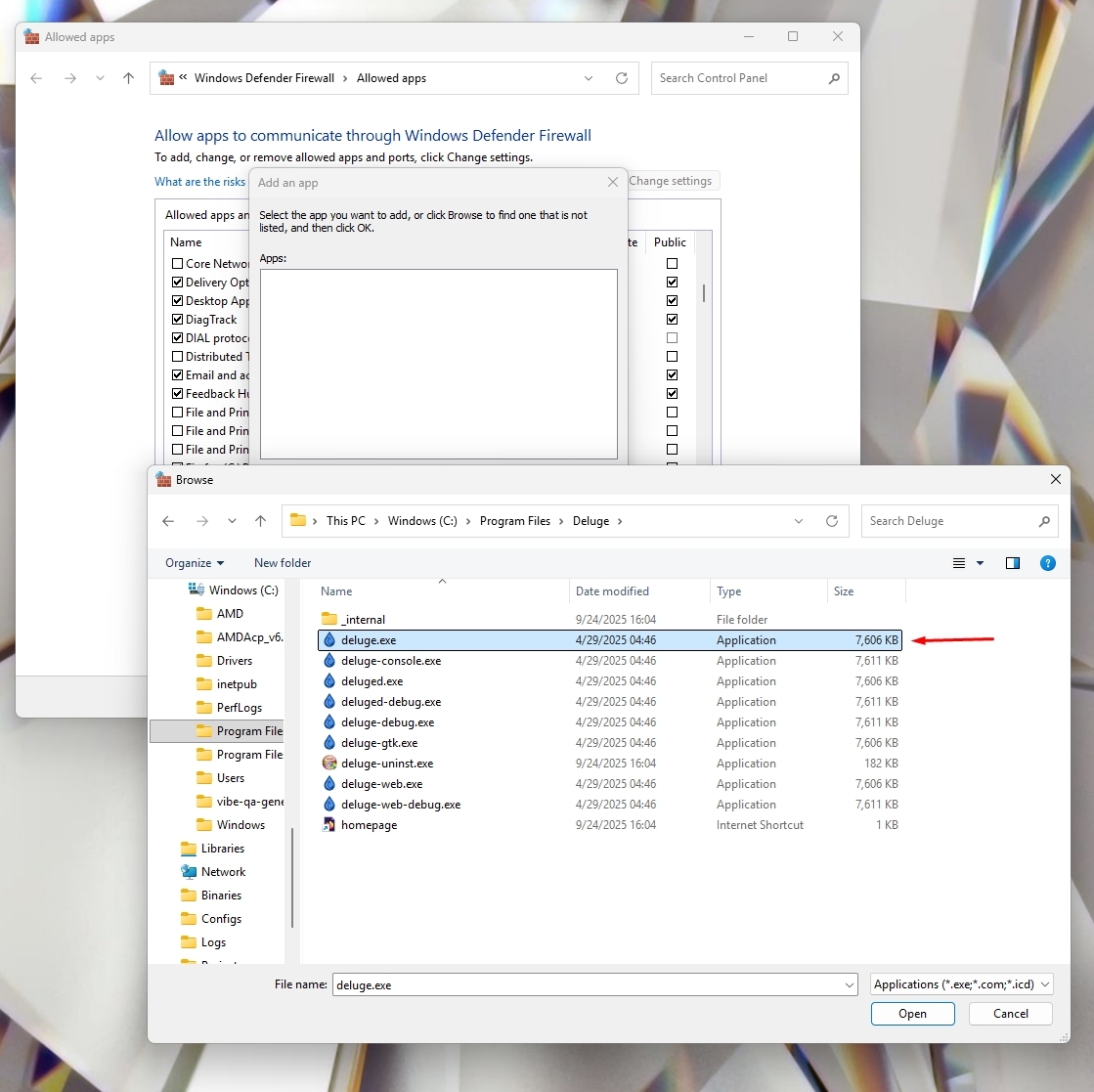
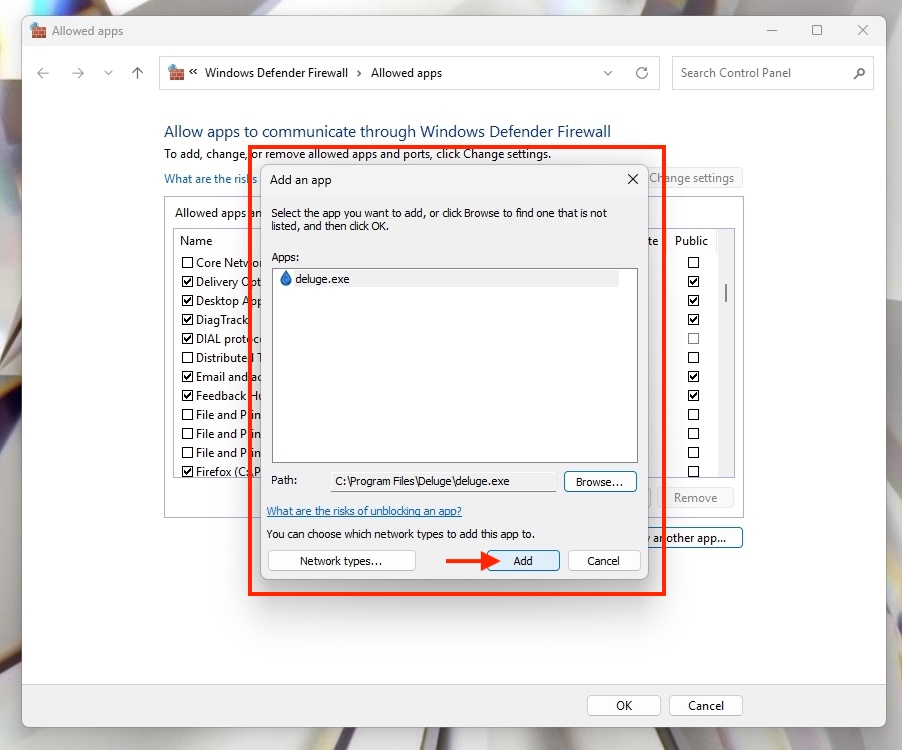
4. Once added, check the Private and Public boxes.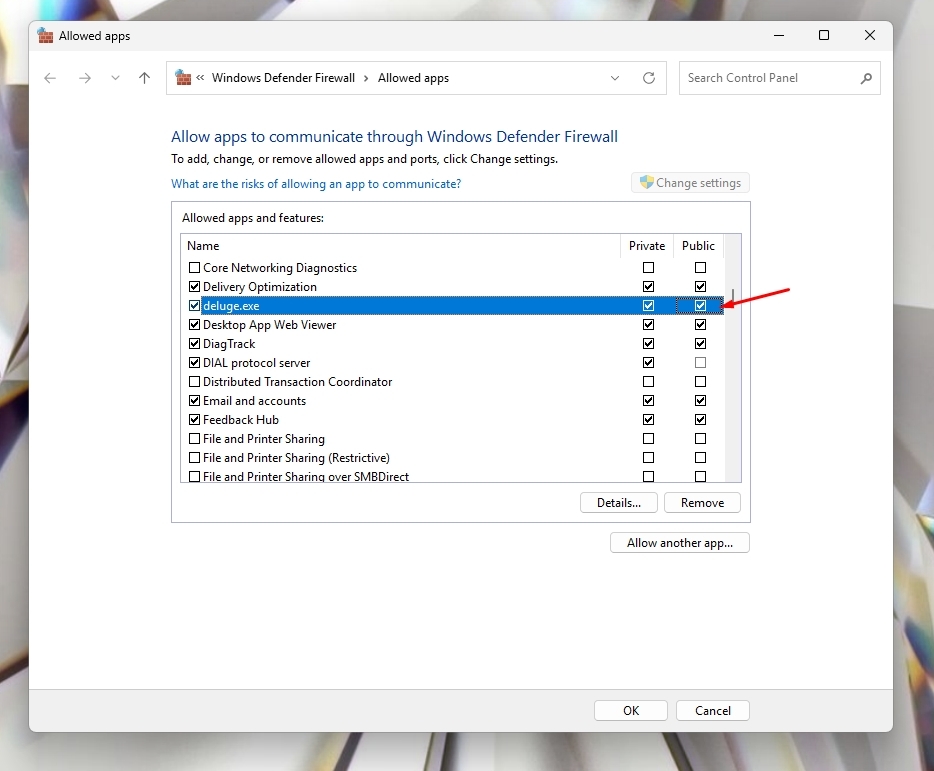
- This ensures the torrent client can accept inbound connections over the VPN adapter, which Windows classifies as a Public network.
- Complete the same for the Windscribe app/executables. Allow both Private and Public.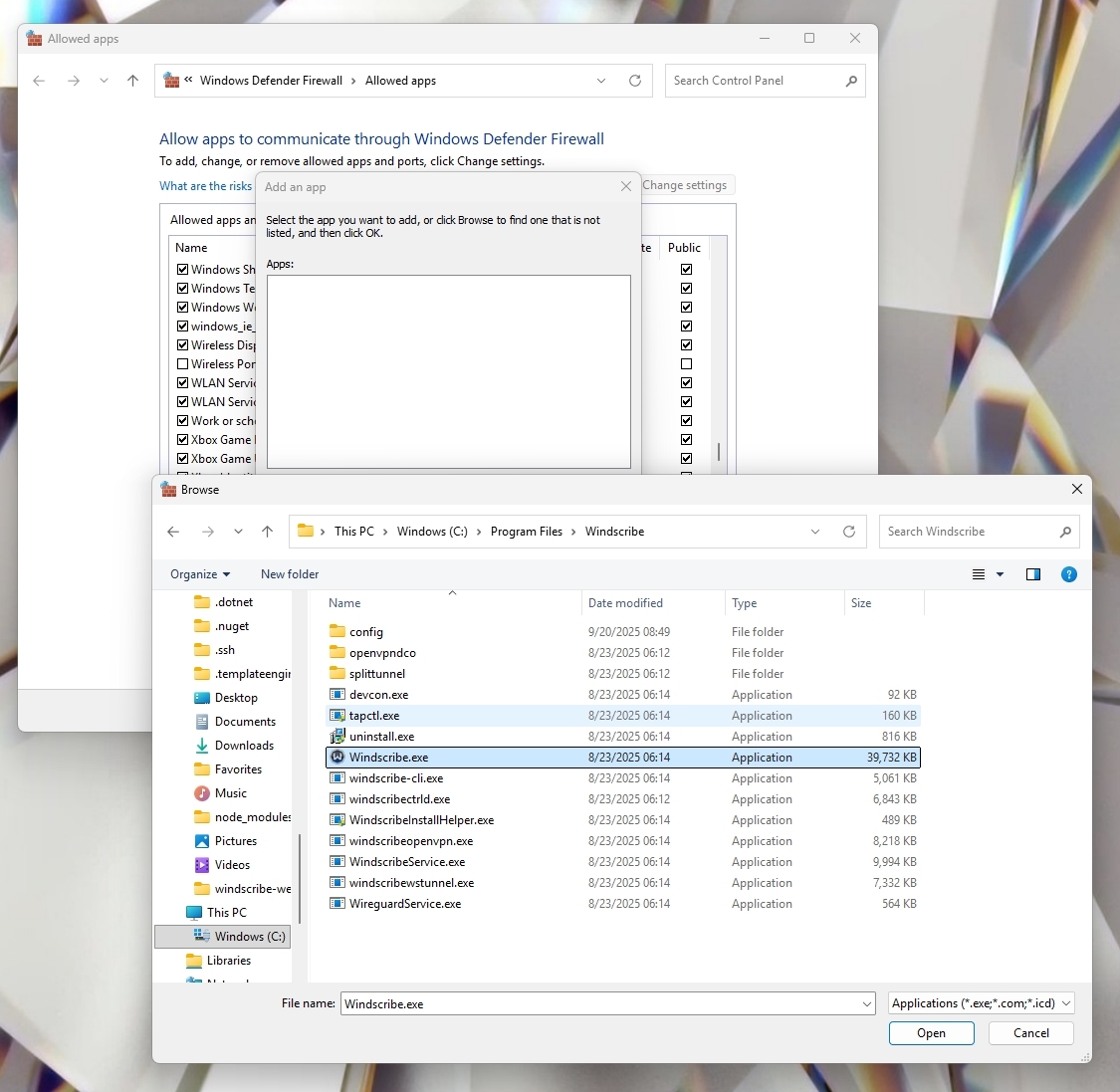
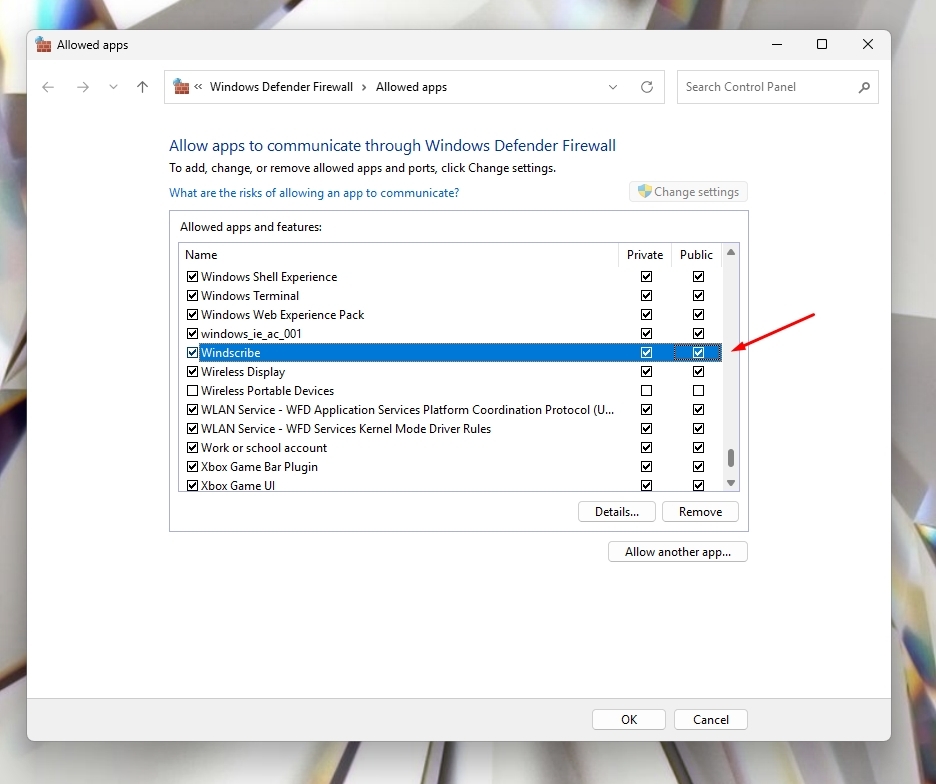
- This step ensures the VPN adapter itself can pass traffic without being blocked by Windows Firewall.
- Together with the matching settings for your torrent client/game server/etc, this allows the VPN tunnel to establish and receive connections through the forwarded port to your client.
5. Click OK to save.
6. Test your setup.
- Reconnect Windscribe with port forwarding enabled.
- Verify that the forwarded port now shows as open in your app or via an online port checker.
Additional Notes
- Windscribe VPN adapters are intentionally set to Public for added protection. This does not reduce privacy or security.
- Granting Public access here only allows your chosen app to receive connections over the VPN tunnel.
- If you change torrent clients or reinstall the app, repeat the above steps.